Android Account Navigation Updates: Finding Your Email in the Latest OS
Setting up a new banking portal or confirming a two-factor verification code often starts with a seemingly mundane prompt: enter the email address tied to your handset. For millions of users handling multiple workspaces, hand-me-down phones, or automated logins, that baseline answer is surprisingly elusive. Google's continuous interface revisions have tucked account identifiers behind modular service layers, making simple device diagnostics feel like an exercise in software archaeology.
Recent coverage highlighted the friction caused by these interface shifts; an Android Police Report tracked how adjusting background sync flags and alert priority within account preferences resolved missed inbox alerts, exposing just how fragmented the operating system's identity layers have become. Finding your active handle requires understanding exactly how modern Android builds separate your system-level identity from app-level profiles.
💡 At a Glance:
- The Fastest Route: Tapping the circular profile picture in Gmail or the Play Store reveals the active address in under two seconds.
- The System Path: Modern firmware organizes full device profiles under Settings > Passwords and accounts or within the dedicated Google Account settings hub.
- Multi-User Traps: Secondary work profiles, managed spaces, and separate billing handles frequently mask which address serves as your primary system identity.
Why Android OS Account Navigation Keeps Changing
Hardware makers do not build settings trees for quick memory checks. Instead, modern menu layouts prioritize biometric security, cloud telemetry, and centralized identity controls. Between early iterations of Android and the streamlined interfaces powering hardware today, Google uncoupled device identity from hardware profiles. The email address configured during unboxing is no longer just a static label in the "About Phone" screen; it acts as an active gateway for synchronization tokens, encryption keys, and continuous remote backups.
This structural change explains why a casual hunt through the main settings screen often yields dead ends. Phone vendors like Samsung, Motorola, and Xiaomi layer proprietary user accounts over Google's core stack. A search for user identification on a Galaxy device might steer you toward a Samsung Account portal instead of the primary Google identity syncing your photos and contacts. Finding the actual email address requires bypassing hardware-specific skin features and targeting the underlying platform accounts directly.
The Fastest Routes: Gmail and Google Play Store
If you need your address immediately to complete an online form, skip the main system settings entirely. Open any first-party Google application that remains active on your home screen. The Gmail app offers the most direct visual confirmation.
Launch Gmail and look at the top-right corner of the search bar. Tapping the circular Gmail profile icon immediately produces an account card. Your active email address appears directly beneath your display name. If you maintain multiple inboxes, this dropdown lists every secondary account currently syncing data to the handset. You can switch between active views or confirm which handle receives transactional emails without digging into system code.
The Google Play Store account switcher works identically. Open the store, tap your avatar in the upper search tray, and read the address displayed at the top of the flyout menu. Because Android requires an authenticated Google handle to download software updates, this screen reflects the credential responsible for app licenses, in-app purchases, and Play Pass subscriptions. If your Gmail app is disabled or unconfigured, the Play Store acts as your reliable backup verification tool.
Locating Addresses Through System Settings
When third-party apps are unavailable, system menus provide the definitive list of authenticated handles running across the operating system. The exact terminology depends slightly on the manufacturer's interface overlay, but the structural pathway remains consistent.
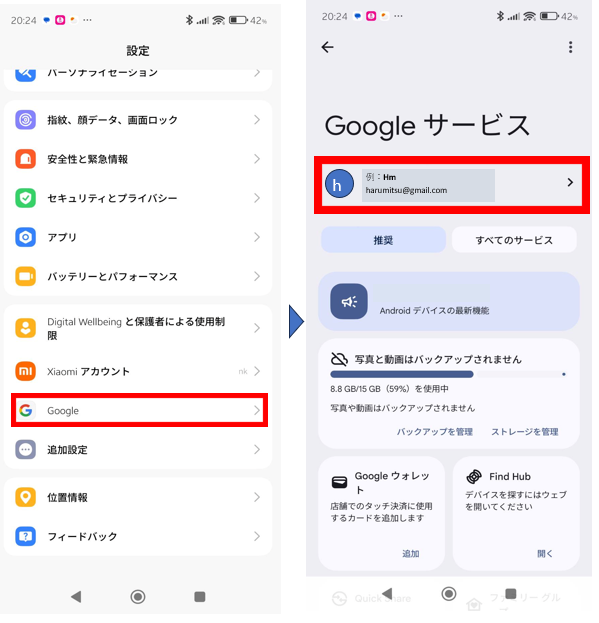
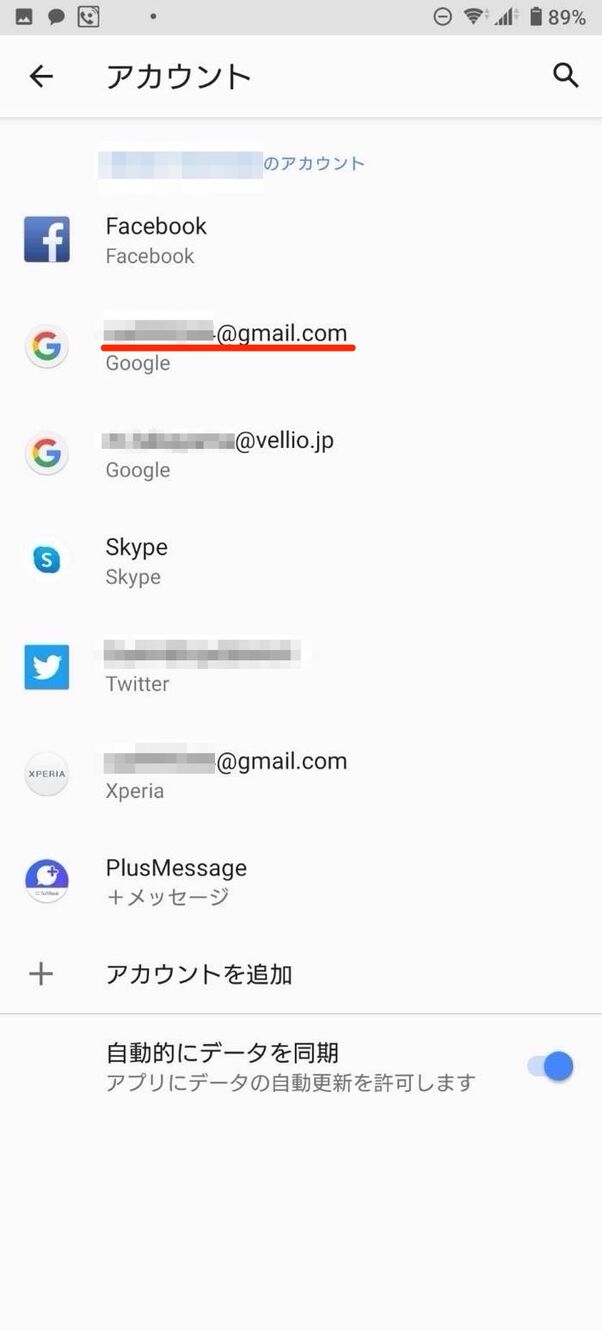
Open the primary Settings app by swiping down twice from the top edge of your display and tapping the gear icon. Scroll down through the list until you locate the Passwords and accounts menu (labeled simply as Accounts and backup on Samsung One UI, or Users & accounts on several stock-derived skins). Selecting this option presents a complete inventory of every synchronized credential registered on the hardware, including personal Google profiles, Microsoft Exchange work directories, and standalone IMAP mailboxes.
For deeper diagnostic management, tap directly into Google Account settings (often surfaced as a standalone Google entry within the main settings tree). This pane displays the full alphanumeric address of your primary device administrator, alongside shortcuts for data safety, cross-device sharing, and security checkups. If you manage an enterprise container, the system clearly separates personal data from encrypted work partitions on this screen.
Comparing Account Access Paths Across Modern Android Builds
Manufacturers distribute system controls differently depending on the software iteration running on your hardware. The table below outlines where to verify your profile credentials across major Android builds and manufacturer skins.
| Software Environment | Primary System Path | Average Taps to View | Accounts Displayed |
|---|---|---|---|
| Stock Android (Pixels / Motorolas) | Settings > Passwords & accounts | 2, 3 taps | All sync services (Google, IMAP, Work) |
| Samsung One UI | Settings > Accounts and backup > Manage accounts | 3, 4 taps | Samsung Account + Google + Social |
| Xiaomi HyperOS | Settings > Accounts & sync | 2, 3 taps | Mi Account + Google Cloud sync |
| Any Build via Play Store | Play Store > Profile Avatar | 1 tap | Active Google Store profile only |
Managing Multiple Accounts, Sync Errors, and Notification Toggles
Holding more than one email address on a single smartphone introduces operational confusion. When a handset runs a personal Gmail alongside an enterprise Google Workspace address, apps behave differently depending on the default Google account setup. The first account added to a fresh device typically assumes priority status, controlling assistant routines, web autofill, and automatic device backups.
Sync conflicts frequently arise when storage quotas run dry or app permissions reset following major OS upgrades. If an address displays an exclamation point inside the Passwords and accounts menu, background communication has stalled. Tapping the account name and selecting Account sync allows you to toggle specific channels, such as Contacts, Calendar, or Drive, off and on to force an immediate refresh.
Alert deliveries can also break quietly. Tuning your Android notification settings at both the OS and app level guarantees that high-priority alerts reach your lock screen. Inside Gmail, navigating to Settings > [Your Account] > Notifications lets you toggle between receiving alerts for "All" incoming messages or only those designated as "High priority." Verifying which address owns which notification rule prevents critical security verification messages from being silently dismissed into notification history.
Security Realities: Android Account Recovery and Identity Audits
Locating an email address is only the initial hurdle; understanding its operational power over the phone is just as critical. Your primary Google profile governs Find My Device remote wipes, carrier activation locks, and passkey storage. If you lose access to the underlying inbox, restoring device access after a factory reset becomes impossible due to Factory Reset Protection (FRP) protocols.
Once you confirm which handle your phone uses, perform an immediate safety check. Navigate to Settings > Google > Manage your Google Account > Security. Review the Android account recovery alternatives registered to your profile. Ensure that a functioning secondary email and an up-to-date recovery phone number are active.
Take this opportunity to audit linked third-party sessions. Modern Android builds allow users to review passkeys stored in the Google Password Manager directly from the security tab. If your device lists an old address you rarely check, transition your primary sync functions to a monitored account before automated security re-authentication locks you out of key system updates.
Troubleshooting Hidden Profiles and Work Containers
Occasionally, an expected email address will not appear inside the standard accounts list. This issue usually occurs on devices with corporate management software or multiple device user profiles enabled.
Check the User profile management configurations by searching for "Users" inside the Settings search bar. If your handset is shared among family members, a secondary guest profile might be active, walling off access to the primary administrator's account list. Returning to the owner profile restores full account visibility.
For corporate devices, look for a briefcase icon superimposed over your app drawer icons. Enterprise software isolates work emails within a secure sandbox. To view your corporate email address, open the work-badged variant of Settings or launch the managed Gmail app directly inside the work profile. The personal accounts menu will deliberately exclude enterprise identities to satisfy organizational data policies.
Frequently Asked Questions (FAQ)
Q1: What is the fastest way to confirm my email address if I cannot open settings?
Open the Google Play Store or YouTube app and tap the circular avatar in the top right corner. The full email address appears right beneath your profile name on the first screen.
Q2: Why does my Samsung phone show a different address than my Google account?
Samsung hardware prompts owners to create a proprietary Samsung Account for cloud backups and theme store purchases. This profile runs parallel to your Google Account. Check Settings > Accounts and backup > Manage accounts to view both identities side by side.
Q3: Can I change the primary Google email on my Android phone without wiping it?
Android does not provide a single "switch primary" toggle. To change your primary system handle, you must add the new address under Settings > Passwords and accounts, ensure your data syncs, and then manually remove the original Google account. Some services may require a device restart to complete the transfer.
Maintaining Control Over Your Device Identities
Modern mobile operating systems increasingly blur the boundary between local hardware and remote cloud profiles. Keeping clear track of which email credentials govern your Android handset protects personal files, simplifies two-factor verifications, and keeps vital system backups connected to an inbox you actively maintain.
Familiarizing yourself with the core settings paths guarantees that sudden interface reorganizations will never leave you locked out of your own hardware profile. Make it a recurring habit to review authenticated accounts, prune unused legacy logins, and verify that recovery routes remain open across every active profile.