Complete Fix Guide: What to Do When You Cannot Type Text in Microsoft Word
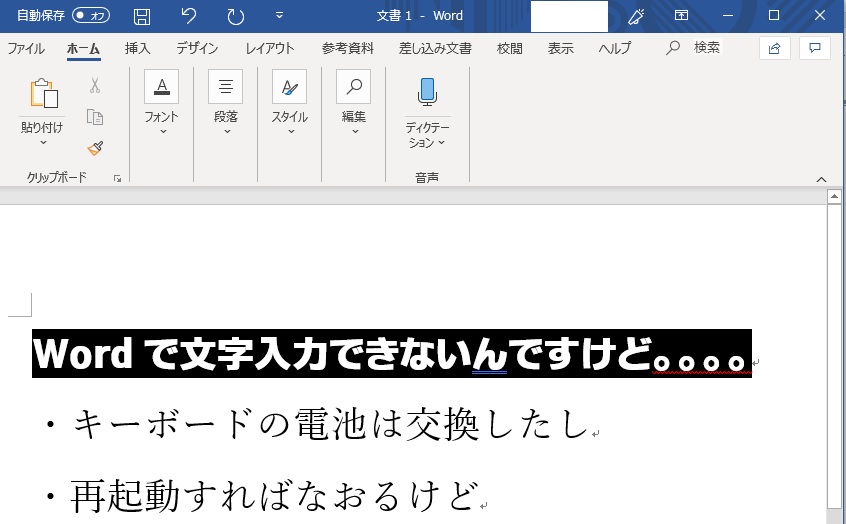
You open a blank document or draft, press a key, and nothing registers on the screen. The cursor sits motionless, or a quiet banner warns that your selection is locked. When Microsoft Word stops accepting keyboard input, the interruption brings work to a sudden halt. While users running into persistent suite bugs frequently search for external options, a shift highlighted in a recent TechRepublic Report examining productivity software migration, the root cause inside Word is almost always solvable without abandoning your file.
Unresponsive text entry stems from a predictable set of failure points: file permission locks, broken add-ins, unrenewed licenses, or input pipeline crashes. Pinpointing the breakdown takes minutes once you isolate the software layer from your operating system.
📌 Quick Summary:
- Core Trigger: Most sudden typing lockouts trace back to subscription expirations, protected document views, or corrupted background add-ins.
- Rapid Diagnostic: Booting into Word Safe Mode immediately confirms whether third-party utilities or baseline templates caused the fault.
- Immediate Action: Inspect your document status bar for editing locks, verify your Microsoft 365 account activation, or clear your global template cache.
Checking Document Locks and Read-Only Restrictions
Before modifying application files, verify whether the limitation applies to the entire software suite or just the active window. A Microsoft Word document locked for editing displays specific behavioral tells. Look at the title bar. If you see "[Read-Only]" or "[Protected View]" adjacent to the file name, Word has deliberately disabled keyboard entry to protect the file structure.
Protected View triggers automatically whenever files originate from email attachments, shared network drives, or web downloads. Clicking the yellow banner marked "Enable Editing" at the top of the workspace immediately releases the lockout. If that bar is absent, open the Review tab on the ribbon and click Restrict Editing. Inspect the side panel to see if editing permissions limit modifications to comments or tracked changes. If password enforcement is active, you must enter the administrative passphrase or save a detached copy to clear the read-only mode toggle.
Corporate environments present another hurdle: Information Rights Management (IRM). When an enterprise administrator flags a file with restricted editing permissions, credentials tied to your current profile dictate editing rights. Signing out of your enterprise tenant or opening the file under a mismatched personal account removes your typing access without clear warning dialogues.
Account Licensing and the Expired Subscription Freeze
A widespread cause of typing failure occurs when Word drops into Reduced Functionality Mode. Under this state, viewing and printing documents remain functional, but text entry, formatting tools, and file creation shut down completely. This happens directly after a Microsoft 365 subscription expired event or an authorization desynchronization with Microsoft servers.
To inspect your Office activation status, navigate to File, select Account in the lower-left corner, and review the licensing pane:
- Product Deactivated: If your annual or monthly billing failed, the license switches to inactive status. Renewing the subscription restores typing capabilities immediately.
- Subscription Expired: Enterprise and educational seats often expire when security policies demand a scheduled sign-in refresh. Clicking "Manage Account" and authenticating via your modern browser solves the disconnection.
- Activation Required: Corrupted token caches frequently show an unactivated status even on active paid accounts. Clicking "Sign In" and authenticating forces Word to ping licensing servers, clearing the editing freeze.
Isolating Corrupted Extensions and Safe Mode Booting
When typing fails across every document, including newly created blank pages, third-party software running inside the Word process represents the prime suspect. Grammar assistants, PDF converters, and reference management utilities inject DLL files into Word via Component Object Model (COM) extensions. A bad update creates a fatal COM add-ins conflict, cutting keyboard event handlers entirely.
To isolate this, trigger the built-in Word Safe Mode shortcut. Press Windows Key + R to launch the Run dialogue, type winword /safe, and press Enter. Alternatively, hold down the Ctrl key while clicking the Word application icon until a prompt asks if you wish to start in Safe Mode.
| Symptom | Underlying Trigger | Targeted Fix |
|---|---|---|
| Cursor blinks; keyboard strokes yield nothing | COM add-in intercepting keystrokes | Launch winword /safe; disable add-ins manually |
| Status bar says "Selection is locked" | Subscription expired or file read-only | Sign in under active account or click Enable Editing |
| Text overwrites forward characters | Accidental Overtype activation | Press the Insert key to return to Insert mode |
| Severe input latency and skipping letters | Display driver crash or IME background hang | Toggle legacy IME settings or turn off hardware rendering |
If typing works normally in Safe Mode, you have confirmed that external plugins caused the failure. Navigate to File > Options > Add-ins. Set the drop-down menu at the bottom to COM Add-ins and click Go. Uncheck all active add-ins, restart Word normally, and re-enable them one by one until the culprit surfaces.

Resetting Normal.dotm and Disabling Hardware Graphics
Word builds every new document from a core blueprint: the global template file. If this file suffers corruption during an unexpected power cut or system crash, newly opened documents inherit corrupted layout states that block key inputs. Performing a Normal.dotm global template reset fixes this instantly.
Close all instances of Microsoft Word. Press Windows Key + R, paste %appdata%\Microsoft\Templates into the field, and press Enter. Locate the file named Normal.dotm. Rename it to Normal.old. Do not delete it yet; renaming isolates the file safely. Relaunch Word. The application automatically generates a factory-fresh template, purging corrupted macros and formatting definitions that caused the input breakdown.
Another system-level culprit involves your display pipeline. When hardware graphics acceleration fails to handshake cleanly with current GPU drivers, Word's canvas freezes while the rest of the application runs. The user types, but the screen fails to refresh the text buffer. While Microsoft transitioned display settings out of the main Options tab on certain builds, disabling GPU acceleration can still be enforced via the registry or by switching to baseline software rendering in Options > Advanced > Display on legacy installations.
Sorting Keyboard Glitches, IME Lag, and Overtype Mode
Software settings outside Microsoft Office can easily look like internal application crashes. Users working in multilingual setups or entering non-Latin characters regularly encounter distinct IME text input lag. The Windows Input Method Editor buffers keystrokes before translating them to the screen; when this service locks up, Word behaves as though the physical keyboard has disconnected.
If typing freezes exclusively while using complex input languages, open Windows Settings, locate Time & Language > Language & Region, open your input language options, and switch on the setting for Use previous version of Microsoft IME. This resolves documented input freezes tied to recent platform updates.
If letters register but overwrite existing sentences, you are encountering the Overtype mode Insert key behavior. Tapping the physical Insert key on your keyboard toggles this function on and off. To prevent accidental triggers, right-click the Word bottom status bar, locate "Overtype", and monitor whether the status reports "Insert" or "Overtype". You can also permanently disable this toggle by clearing the checkbox labeled "Use the Insert key to control overtype mode" under File > Options > Advanced.
Finally, distinguish between software blocks and a full application freeze. If keyboard shortcuts like Ctrl + S do not trigger the save dialogue and menu buttons remain unresponsive, you are facing a complete Word freeze keyboard unresponsive scenario. Open the Windows Task Manager using Ctrl + Shift + Esc, end the WINWORD.EXE task tree, and let the Office Document Recovery pane restore your draft on the next launch.
Frequently Asked Questions (FAQ)
Q1: Why does Word say "You can't make this change because the selection is locked"?
A1: This error message means the file is either marked read-only, secured under administrative editing permissions, or your Microsoft 365 license has lapsed. Verify your sign-in details under File > Account, or click "Enable Editing" if the document opened from an external download.
Q2: Why can I type in web browsers and Notepad, but not inside Microsoft Word?
A2: When other applications take input normally, your physical keyboard and USB drivers are working fine. The issue is contained inside Word. It is usually caused by a corrupted COM add-in, an expired Office license, or a broken Normal.dotm template file.
Q3: How do I know if an expired license is blocking my typing?
A3: Click File and select Account. If your license has lapsed, a yellow or red warning will state "Subscription Expired" or "Product Deactivated." In this state, Word locks out editing tools entirely while leaving reading and printing active.
Regaining Typing Control and Avoiding Workflow Stalls
Losing keyboard input in Microsoft Word looks like a disastrous system failure, but the root cause almost always boils down to a specific flag or corrupted background cache. By stepping through the problem methodically, checking document protection, verifying subscription credentials, testing Safe Mode, and rebuilding the base template, you can isolate the issue in minutes.
Pinning down these issues early keeps drafts safe and prevents unnecessary reinstallations. Run through the diagnostic sequence systematically to restore your workspace and get your keys registering again.