The Complete Simeji Background Customization Manual: Photos, Videos, and Troubleshooting

Simeji remains one of the most widely downloaded third-party mobile keyboards in Japan, surpassing 60 million cumulative downloads across iOS and Android. While standard keyboards prioritize neutral minimalism, Simeji treats typing input as personal digital canvas. Its popularity across global anime fandoms, mobile gaming communities, and Japanese language learners stems largely from its visual customization engine, which lets users replace monochromatic keypads with high-resolution portraits, looped video clips, and responsive key audio.
Navigating these settings can prove frustrating when faced with Japanese interface labels, platform permission blocks, or recurring save errors. Unlocking custom graphics requires knowing exactly where to tap, how to preserve character contrast, and how to configure system-level security permissions on modern versions of iOS and Android.
📌 Key Takeaways:
- The Quick Workflow: Access the DIY theme creator by tapping the t-shirt icon on the keyboard toolbar, selecting the camera icon, and loading local media directly from your device storage.
- The Readability Rule: High-saturation wallpapers require keyboard transparency adjustment and dark font color customization to prevent letters from disappearing into the image.
- Troubleshooting Core: Black screen rendering errors and failed theme saves almost always stem from disabled storage access or missing iOS "Full Access" permissions.
Accessing the DIY Theme Creator and Setting Photo Backgrounds
Setting up a custom photo background in the Simeji keyboard app takes less than two minutes once you locate the custom skin editor. Open any messaging app to summon the Simeji keyboard on screen. At the top left of the keyboard's utility strip sits a hanger or t-shirt icon. Tapping this icon bypasses standard settings and opens the Simeji theme gallery.
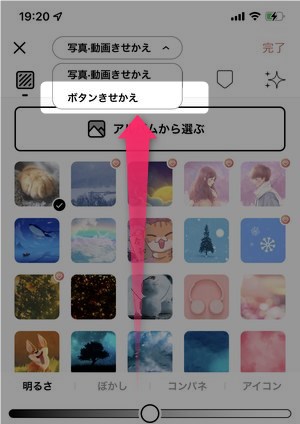
Inside the theme gallery, bypass the pre-made anime promotions and tap the custom creation button, marked by a camera icon alongside the label "写真/動画" (Photos/Videos) or "自作スキン" (DIY Skin). This command prompts the operating system to grant access to your local media library. Select a static image from your camera roll. Simeji brings up an adjustable cropping grid locked to standard horizontal keyboard proportions.
Pinch and reposition your photo to isolate the focal point, usually keeping faces or detailed artwork centered or slightly elevated so the bottom space bar does not obscure key elements. Confirm the frame by pressing the red or pink checkmark button in the upper right corner. Simeji then pushes the graphic into the secondary styling suite, where you configure the visual behavior of the individual keys.
Engineering an Animated Video Keyboard Without System Lag
Static pictures are only half of the appeal. Simeji natively supports short video loops and animated GIFs directly behind the typing layout. The setup procedure mirrors static photo imports: select the video tab within the DIY creation portal and choose a video file saved to your device.
Videos introduce two technical hurdles: rendering stutter and rapid battery consumption. Simeji automatically trims video backgrounds to a continuous loop running between 3 and 10 seconds. To prevent typing lag on mid-tier hardware, pick a video clip featuring subtle movement rather than frantic camera motion. High-framerate, fast-panning sequences make tracking key positions visually exhausting.
Once you select the video interval, the app processes the file into a hardware-accelerated local cache. Keep the original video file size under 50 megabytes before importing. Bloated video files frequently cause the keyboard daemon to drop out of memory when switching between intensive apps, forcing the operating system to fall back onto the default stock keyboard.
Tuning Keyboard Transparency and Font Color Customization
A frequent error among first-time designers is applying a bright, intricate illustration that completely washes out the character layout. An unreadable keyboard defeats its own purpose. Simeji accounts for this with a real-time adjustment deck containing transparency sliders, key border overlays, and typography controls.
The opacity slider dictates how much of your photo shines through the keycaps. Sliding the setting toward 0% opacity makes the keycaps entirely transparent, leaving bare letters floating directly over your artwork. Setting it between 30% and 45% opacity applies a subtle frosted tile behind each character. This middle ground protects typing accuracy without obscuring background details.
Contrast requires deliberate typography pairing. If your chosen graphic contains white highlights, shift the font color from the default white to charcoal or jet black. Simeji also provides custom key design templates featuring drop shadows, rounded neon borders, and tap animations. Choose an accent color that complements your wallpaper's primary palette while keeping the character glyphs immediately legible in direct sunlight.
| Customization Parameter | Recommended Setting | Usability Impact |
|---|---|---|
| Background Source | 1080p Static JPG or 3, 5s MP4 | Prevents memory crashes during rapid app switching. |
| Key Cap Opacity | 35%, 50% Frosted Tint | Maintains visual boundary for fingers without masking art. |
| Glyph Font Contrast | Inverted Tone with Outline | Guarantees character visibility against busy patterns. |
| Key Sound Effects | Low Volume Mechanical/Soft Tap | Provides tactile feedback; requires active audio permissions. |
Managing iPhone Full Access and Android Keyboard Settings
Third-party keyboards live inside restricted sandboxes. When Simeji fails to load a saved image, refuses to trigger key sounds, or throws an unexpected save error, security restrictions are almost always the cause.
On Apple devices, iOS blocks third-party extensions from reading local photo files and accessing audio outputs unless you enable elevated privileges. Head to Settings > Simeji > Keyboards and toggle on Allow Full Access. Apple displays a standardized warning stating that full access allows the developer to transmit input data, including past keystrokes. While this prompt sounds alarming, Simeji requires this permission specifically to fetch local images from your storage directory and cache custom theme assets. Without it, the theme creator crashes upon saving.
On Android, open Settings > Apps > Simeji > Permissions. Ensure both Photos and Videos (or Storage on earlier Android releases) are set to "Allow". Next, navigate to battery optimization settings and set Simeji to "Unrestricted." Aggressive background battery management tools kill custom skin background services, resetting your keyboard back to its default appearance after a few hours of device standby.
Resolving the Background Black Screen Bug and Save Failures
The most persistent technical issue reported by the community is the background black screen fix. Users finish designing a skin, tap save, and receive an entirely pitch-black typing interface where letters remain visible over an empty void.
This glitch happens when the OS sandbox severs the path between Simeji's rendering layer and the image file stored in your photo roll. Follow these steps to restore visual rendering:
First, verify image persistence. If you applied a background photo and subsequently deleted that image from your device's native camera roll, Simeji may fail to retrieve the cached version. Keep the source image in your photo library, ideally stored inside a dedicated app album.
Second, clear the runtime cache. On Android, go to Settings > Apps > Simeji > Storage and tap Clear Cache. Avoid clearing storage data unless you have synced your custom dictionary. On iOS, double-tap the app switcher, swipe away Simeji, toggle "Allow Full Access" off and back on, then reopen the Simeji configuration application directly from your home screen.
Third, monitor memory constraints. If your mobile device has less than 3 gigabytes of RAM free under heavy gaming loads, the mobile OS will forcibly purge third-party keyboard skins to prevent the active foreground game from crashing. Using a compressed static JPEG rather than an animated MP4 solves this problem immediately.
Frequently Asked Questions (FAQ)
Q1: Why does my Simeji keyboard revert to the stock Apple or Gboard layout automatically?
A1: Mobile operating systems prioritize system stability above custom keyboards. If Simeji runs out of available memory, often triggered by high-resolution animated video themes or low device RAM, the operating system temporarily disables the extension and loads the stock keyboard. Restarting the device and switching from a video theme to a static photo will prevent unwanted keyboard switching.
Q2: Is it safe to enable "Allow Full Access" for Simeji on my device?
A2: The "Allow Full Access" alert is an automated security disclosure built into iOS. Simeji requires this switch to read stored images, save custom configurations, and download cloud conversion vocabularies. However, because the app transmits cloud-predictive dictionary data to its servers, you should switch back to your operating system's native keyboard whenever typing sensitive information like passwords or financial credentials.
Q3: Can I transfer my customized Simeji skins when switching phones?
A3: Yes, provided you register a free Simeji account (via Apple ID, Google account, or social login). Tap the profile tab within the standalone Simeji app, navigate to "My Skins" (マイテーマ), and choose Cloud Backup. When you sign in on your new handset, your saved themes, custom transparency calibrations, and personal dictionary sync automatically.
Balancing Visual Identity with Typing Performance
Customizing your keyboard transforms a utilitarian phone function into an extension of personal style. Simeji's DIY engine offers visual flexibility that stock alternatives like Gboard and Apple Keyboard simply do not match. Taking full advantage of these features requires thoughtful balancing. Pair your high-resolution artwork with moderate opacity adjustments, maintain strong contrast across all letters, and configure operating system storage permissions accurately. By handling these technical details during setup, you ensure your custom keyboard remains responsive, reliable, and visually distinctive through millions of keystrokes.