The Evolution of Mobile Scanning: How iOS Turned Barcodes Into Core Utilities
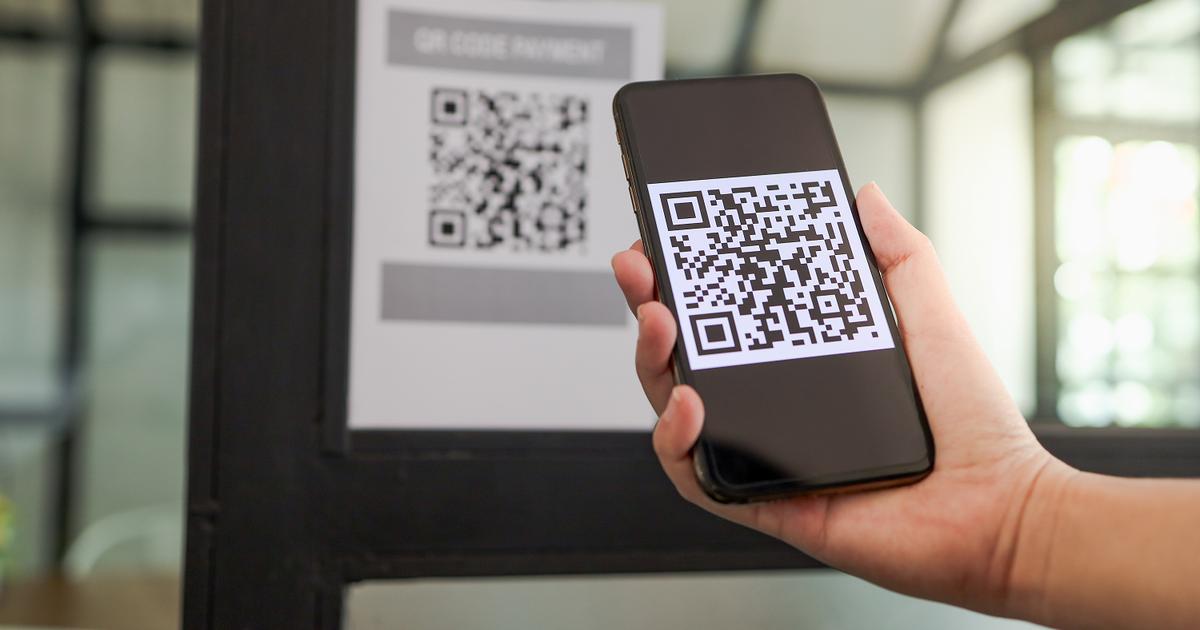
For the first decade of the modern smartphone era, scanning a two-dimensional barcode was an exercise in patience and compromise. Users navigated App Store searches flooded with low-tier utilities, enduring invasive banner ads, aggressive subscription prompts, and questionable privacy policies just to parse a URL. That friction dissolved as platform holders turned scanning into a core operating system utility. Much like the broader platform evolution highlighted in a lifehacker Report on how default viewfinders phased out standalone utilities, Apple methodically dismantled the standalone scanner market by folding optical decoding directly into the silicon and software of the iPhone.
By 2026, optical parsing on iOS is no longer a distinct task. It functions as an ambient background layer. Machine learning frameworks parse text, Wi-Fi credentials, and cryptographic passes the microsecond they drift across the lens or appear in a static screenshot. Understanding how Apple dismantled this app category reveals a broader pattern in platform design: turning third-party conveniences into native system infrastructure.
📌 Key Takeaways:
- The Native Pivot: Apple turned third-party utilities obsolete by embedding machine-vision barcode detection directly into the default iPhone Camera app and system daemons.
- The On-Screen Breakthrough: The rollout of the Live Text feature eliminated the physical barrier of scanning, allowing iOS to read barcodes inside the Photos app, Safari, and screenshots without an external lens.
- Specialized Survival: While mass-market readers vanished, industrial and niche utilities like MediaSeek's ICONIT maintain dedicated audiences through high-density inventory decoding and batch scanning.
From Adware Utilities to Native Camera Viewfinders
Between 2008 and 2017, search queries for barcode readers dominated App Store utility rankings. These applications carried high hidden costs. Many required broad location permissions, ran tracking scripts, and inserted intermediate redirect servers between the user and their final destination. Rogue redirects exposed users to drive-by phishing attacks long before mobile browsers hardened their defenses.
Apple broke that business model at WWDC 2017 with the release of iOS 11. Instead of forcing users to launch a dedicated tool, Apple built optical detection directly into AVFoundation, the underlying framework driving the default iPhone Camera app. Framing a standard square code triggered a lightweight drop-down notification banner at the top of the display.
The design was deliberately unobtrusive. If the user ignored the banner, it vanished without locking the viewfinder. By moving decoding to the operating system level, Apple eliminated the security vulnerabilities plaguing third-party utilities. The phone parsed the raw string locally on the device, verified the target schema, and prompted the user before passing the payload to Safari or an internal service. Overnight, millions of ad-supported utilities lost their primary reason for existing.
Architectural Shift: Point-and-Shoot to System-Wide Live Text
Physical point-and-shoot scanning solved half the problem, but it created an awkward UX bottleneck: how to scan an on-screen QR code displayed on the device itself. For years, users relied on cumbersome workarounds, such as taking a screenshot, emailing it to a computer, and pointing their iPhone camera at the monitor.
Apple resolved this fragmentation through machine vision updates, culminating in the system-wide Live Text feature. Rather than treating barcode scanning as an active camera mode, iOS treats every image asset as structured data. The Neural Engine scans pixels in the background across Photos, Safari, Quick Look, and the screenshot preview overlay.
Visual Capture (Camera / Screenshot)
│
▼
Apple Neural Engine (On-Device Vision Framework)
│
├── URL Schema ────────► Safari URL Redirect (Sandboxed)
├── Wi-Fi Payload ─────► CoreOS Network Credentials Daemon
├── PKPass Data ───────► Apple Wallet Pass Scanning
└── Plain Text / 1D ───► Clipboard / Data Detectors
When a user views a photo containing a barcode, a small optical indicator appears in the lower corner of the display. Tapping the code directly or pressing down on the image surfaces a context menu with native actions: opening a URL, copying the alphanumeric string, or sharing the decoded payload. The camera is no longer a gatekeeper. Any pixel buffer rendered on an iPhone display can be read instantly.
Evolution of iOS Scanning Architecture
The shift from manual scanning apps to integrated OS services occurred across several specific update cycles:
| iOS Generation | Core Scanning Mechanism | Native Payload Handling |
|---|---|---|
| iOS 11, 12 | Camera App drop-down banner | Basic Safari URL redirect and Wi-Fi credential parsing |
| iOS 13, 14 | Control Center Code Scanner utility | In-app web view without browser tab clutter; low-light flashlight trigger |
| iOS 15, 16 | Dynamic viewfinder pill + Live Text | Direct interaction within Photos app, screenshots, and Safari images |
| iOS 17, 18+ | Anchored viewfinder buttons and VisionKit | Inline actions anchored near the physical code; native App Clip invocations |
Each iteration systematically stripped friction from the user experience, eliminating intermediate screens, reducing processing latency, and ensuring optical inputs feed directly into system-level services.

Bypassing the Browser: How Payloads Trigger System Daemons
Optical scanning on modern iOS devices does far more than route traffic to web pages. The operating system uses targeted data detectors to route decoded payloads straight to native services, bypassing the web browser entirely.
When pointing the camera at a standard router setup code, the phone reads the underlying `WIFI:T:WPA;S:NetworkName;P:Password;;` schema. Instead of launching a search or displaying an unformatted text string, iOS displays an alert asking the user if they want to join the network. Confirming the dialog passes the WPA pre-shared key straight to the CoreOS network daemon, connecting the device securely without exposing the password in plain text.
The same principles apply to transit passes, event tickets, and boarding credentials. Raw barcodes formatted according to Apple's PassKit specifications trigger direct additions to Apple Wallet. The Camera app verifies the cryptographic signature on the fly, showing a preview card that can be filed away with a single tap.
For quick tasks, the dedicated Control Center Code Scanner offers an even tighter loop. Unlike the standard Camera app, which leaves open tabs in Safari, the Control Center scanner renders destinations inside an isolated, temporary web sheet. Closing the window wipes the cache, leaving the user's primary browser uncluttered.
Why Standalone Barcode Readers Refuse to Disappear
Native operating system tools meet the needs of general consumers, yet specialized third-party scanners continue to thrive in professional and niche markets. The built-in iOS camera prioritizes photography, adjusting its focus, exposure, and color processing for balanced visual output. That processing introduces a brief delay when reading dense, damaged, or industrial 1D barcodes in rapid succession.
Enterprise logistics, retail inventory, and dedicated consumer apps step in where native tools leave off. Companies like Tokyo-based MediaSeek, led by CEO Naoki Nishio under the Solvvy group, continue maintaining specialized tools such as the ICONIT app. Long-standing tools like ICONIT retain dedicated user bases by offering specialized features: historical scan logs, bulk inventory tracking, direct product price comparisons, and high-frequency decoding of distorted industrial labels.
Stock operating systems are built for quick, one-off interactions: joining a network, paying for parking, or browsing a restaurant menu. They are not built to log fifty warehouse serial numbers in two minutes, export CSV manifests to enterprise resource planning software, or decode micro-density data matrices etched onto circuit boards. For those operational workflows, specialized third-party utilities remain indispensable tools.
Frequently Asked Questions (FAQ)
Q1: Why is my iPhone camera failing to detect QR codes automatically?
A1: Open Settings, navigate to Camera, and ensure the Scan QR Codes toggle is enabled. If the code still fails to register, adjust your distance to between 8 and 12 inches, tap the screen to lock focus, or wipe the camera lenses to clear any smudges obscuring the pattern.
Q2: How do I scan a QR code inside an image or screenshot without using another screen?
A2: Save the image to your library and open it in the Photos app. Tap the Live Text icon in the bottom-right corner, or press and hold the barcode directly on your screen. A contextual pop-up menu will appear, letting you open the URL, copy the string, or share the link.
Q3: Should I use the Camera app or the Control Center Code Scanner?
A3: The standard Camera app works best when you want to keep the resulting website open in a permanent Safari tab. The Control Center Code Scanner is designed for quick, one-off visits. It opens destinations in an ephemeral preview window and automatically activates the flashlight in dark environments.
The Invisible Future of Machine Vision
The disappearance of the dedicated QR reader marks an important turning point in mobile software design. What began as an experimental industrial tracking system invented by Denso Wave in 1994 has become an integral part of how humans and computers exchange small packets of physical data.
Apple did not just build a scanning feature; it absorbed optical recognition entirely into the operating system. By distributing machine-vision decoding across the Camera app, system screenshots, the Photos library, and Control Center, iOS treats printed codes with the same responsiveness as tapped hyperlinks. As physical spaces, smart infrastructure, and digital services continue to converge, optical machine reading will fade further into the background, operating quietly behind the glass.