Why Did the Tab Button Move? How Recent Browser Updates Changed Tab Deletion

If you opened your browser this morning and clicked empty air where the close button used to be, you are not alone. Engineering teams across Google, Apple, and Mozilla have aggressively overhauled browser chrome, moving or hiding the traditional "X" mark to clear room for AI sidebars, vertical workspaces, and adaptive density layouts. As detailed in the recent Ars Technica Report examining macOS 27 Golden Gate, Apple's latest Safari update continues to merge address bars, media controllers, and navigation triggers into dynamic, floating modules.
The immediate casualty of these interface redesigns has been muscle memory. Users accustomed to rapid-fire cleaning find themselves misclicking, launching unwanted split panes, or causing accidental tab closure across critical workflows. Understanding how each major browser handles tab deletion today restores control over your desktop workspace and prevents catastrophic session loss.
📌 Key Takeaways:
- The Root Disruption: Chromium and WebKit browsers have replaced static close buttons with dynamic hover targets, gesture triggers, or hidden overflow menus to accommodate AI integrations and dense tab arrays.
- The Quickest Workaround: The Ctrl W shortcut on Windows/Linux and Cmd W on macOS remain entirely immune to UI shifts, instantly purging active tabs regardless of where developers move the visual icon.
- Session Safeguards: Chrome, Safari, and Firefox now store multi-tiered cache backups, making browser session recovery possible even when entire tab arrays disappear during mass deletion.
Where the Close Button Disappeared Across Modern Desktops
The standard browser layout spent nearly two decades placing a visible "X" on the right edge of every inactive tab. That convention collapsed as viewport real estate became a battleground for ancillary tooling. In Google Chrome, high tab density now compresses individual tab headers until the close button completely vanishes. Unless you hover directly over the specific panel for at least 250 milliseconds, the button stays suppressed to stop accidental misclicks.
Apple adopted an even more aggressive path with the unified Safari tab bar layout. On macOS Golden Gate, the close glyph frequently shifts to the far left of the tab pill upon hover, mirroring classic Mac window management rather than web conventions. For multi-monitor users running mixed operating systems, this creates immediate friction. You expect the target on the right; the browser renders it on the left, or conceals it entirely behind a secondary audio-indicator glyph.
Firefox took a divergent route with the rollout of Firefox 149 in April 2026. While Mozilla added native tab splits and built-in privacy controls, the introduction of split workspaces altered tab deletion logic. Closing a split pane no longer terminates the session tab; instead, it collapses the secondary view back into a single panel. To actually delete the tab, users must target the master workspace strip or use dedicated keyboard overrides.
Fast Execution: Shortcuts and Gestures That Bypass Broken UI
Relying on mouse clicks for browser tab management has become a liability. Visual targets shrink, move, and shift their hitboxes based on window dimensions. Keyboard execution remains deterministic.
Pressing the Ctrl W shortcut (or Cmd W on macOS) terminates the current tab instantly. It does not matter whether the "X" button is obscured, collapsed, or hidden behind an active media stream. To shut down an entire window alongside all child tabs, pairing Ctrl Shift W cleanly dispatches the container. Linux distributions running modern Wayland compositors map middle-click actions directly onto tab headers: clicking your mouse wheel anywhere on the tab surface destroys it without requiring pinpoint cursor alignment.
If you prefer mouse interaction, most Chromium installations support direct drag-to-trash actions when vertical tabs are toggled. Dragging a tab outside the header bar and releasing it while holding the secondary click destroys the instance instantly, sidestepping the miniature hitbox problem entirely.
Mobile Tab Overload: Taming Chaos on Android and iOS
Mobile browsers present an even sharper operational bottleneck. Screens fill rapidly, and background battery savers freeze unattended pages. According to reporting from Android Police in June 2026, many power users abandoned default mobile setups for Samsung Internet tabs specifically because of how smoothly it handles mass cleanup. While stock engines clutter interfaces, Samsung Internet retained a dedicated, persistent bottom-bar "Close All Tabs" button that clears hundreds of stale instances in a single tap.
The situation inside Chrome on Android diverged sharply this year. Following the controversial Gemini platform updates highlighted by BGR in mid-2026, Google restructured mobile Chrome's tab switcher to prioritize AI contextual search and automated recommendations. The traditional three-dot overflow menu moved deeper into the upper header. To execute a close all tabs Android command in modern Chrome, you must enter the tab switcher grid, tap the three vertical dots located at the top-right corner, and select "Close all tabs." If Chrome displays tab groups instead of individual cards, individual stacks must be dissolved before mass termination works.
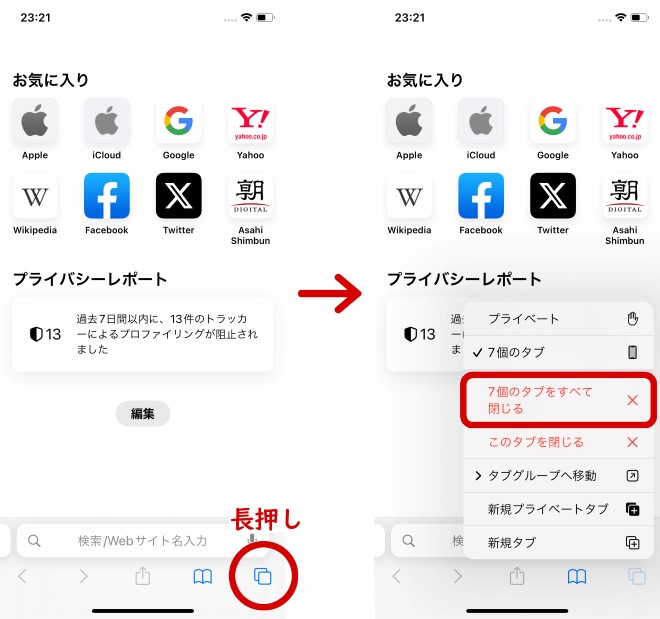
On iOS, Safari users can bypass closing tabs one by one. Long-pressing the overlapping squares icon at the bottom-right opens a context menu containing a red "Close All [X] Tabs" option. Tapping that clears mobile tab overload instantly.
Browser Tab Architecture and Deletion Matrix
Each major platform now treats tab retention, accidental closure prevention, and memory limits differently. The table below outlines how current releases manage tab destruction and recovery as of late 2026.
| Browser Platform | Default Desktop Close Behavior | Mass Purge Method (Mobile) | Accidental Close Recovery Key |
|---|---|---|---|
| Google Chrome | Right-side "X" (hides during high density) | Grid Menu > Close All Tabs | Ctrl + Shift + T / Cmd + Shift + T |
| Apple Safari | Left-side hover icon on active tab pill | Long-press Tab Switcher > Purge All | Cmd + Z (Immediately after closure) |
| Mozilla Firefox (v149) | Persistent right "X"; Split views close via header | Tab Tray > Settings > Close All | Ctrl + Shift + T |
| Samsung Internet | N/A (Primarily mobile platform) | Persistent Bottom Bar "Close All" | Reopen Closed Tab in History Menu |
Undo and Recover: Rescuing Lost Windows After Accidental Closures
The faster you close tabs, the more likely you are to wipe out a form, a research document, or an active project. Fortunately, browsers now treat tab termination as an undoable database transaction rather than an absolute erasure.
In July 2026, hardware and enterprise software engineers at HP published a comprehensive recovery benchmark showing that modern Chromium builds preserve closed tab histories through up to 25 consecutive programmatic states. If you inadvertently kill a critical window, hitting Ctrl Shift T on Windows or Cmd Shift T on Mac revives the exact tab in its previous scroll position. Repeating the key combination steps backward through your entire closure timeline, pulling back whole windows that crashed or closed minutes earlier.
For Safari users, restoring an accidentally terminated tab operates via standard system undo commands. Pressing Cmd Z immediately after tapping the close button re-renders the web page. If several seconds have passed, navigating to the History menu and selecting "Recently Closed Tabs" lets you reconstruct your lost browsing session without combing through weeks of logs.
The Architectural Motive Behind Shifting Controls
Browser designers did not move your buttons to cause frustration. The underlying engine architecture has fundamentally shifted toward horizontal conservation. With modern displays shifting to ultrawide 21:9 aspect ratios or split-screen tablet orientations, vertical screen height is at an absolute premium.
Features like Chrome tab groups and side panels compress headers down to the millimeter. When you stack 40 tabs across a 1400-pixel browser frame, each tab receives less than 35 pixels of width. That is narrower than the human thumbprint on a touch display and roughly equal to two mouse cursor widths. Under those conditions, a permanent close button causes continuous accidental tab closure whenever a user simply tries to focus a window.
Hiding the close button until hover or shifting it into nested gesture menus protects active memory sessions. It forces users into intentional, deliberate choices: pinning what matters, grouping related workflows, and executing keyboard purges when it is time to clear the workspace.
Frequently Asked Questions (FAQ)
Q1: Why does the "X" button disappear entirely when I have multiple tabs open in Chrome?
Chrome automatically disables the close icon on individual tabs once tab width drops below a specific pixel threshold. This prevents users from closing windows by mistake when switching between pages. To close a compressed tab without resizing your window, hover over it to reveal the icon, middle-click it, or click to focus and press Ctrl W.
Q2: How do I close all background tabs while keeping only my active page open?
Right-click the tab header of the page you want to keep. In the context menu, select "Close other tabs." You can also choose "Close tabs to the right" to eliminate pages opened during a research session while preserving your primary workspace to the left.
Q3: Can I restore a tab group if I accidentally delete the entire folder?
Yes. Hitting Ctrl Shift T (Windows) or Cmd Shift T (Mac) restores full Chrome tab groups, including their custom labels and color assignments. Alternatively, press Ctrl H to open your History panel and click "Recently Closed" to restore entire multi-tab containers simultaneously.
Adapting Muscle Memory to Modern Browser Design
Browser interfaces will continue to change as web applications demand more screen space. Hoping that platform vendors will restore static, permanently visible buttons runs counter to the prevailing direction of software design. The visual chrome of your browser is steadily stepping back to put full focus on the page itself.
Mastering keyboard execution breaks your reliance on shifting interface targets. Committing the Ctrl W shortcut and its undo counterpart Ctrl Shift T to automatic reflex eliminates friction immediately. Rather than hunting across screens for redesigned icons or struggling with miniature hitboxes, keyboard navigation allows you to clear desktop clutter with absolute certainty.